Every clip the channel has. One library.
SMAM is the shared library between SIngest, STraffic, SPO and SSocial. It shows every media file the platform knows, from the playout media folders, the ingest recordings and your NAS, with proxies from STranscode that play in any browser. Librarians tag it, editors trim it into sub-clips, and a right-click sends it to playout, the programme library or social.
Flood archive, river bank
NWS-5520· Own material
Flood, aerial
NWS-5533· Until 30 Nov
Flood, camera 2
NWS-5531· Own material
Agency: storm front
AGN-2210· Expires in 3 days
SMAM is in early access. The panels shown here are an illustration, not a capture of the product.
- STEP 01
Ingest
SIngest records an input or picks up a file from a watch folder.
- STEP 02
Transcode
STranscode makes the house-format file and a proxy for the browser.
- STEP 03
Catalogue
In SMAM, librarians tag it and editors trim it into sub-clips.
- STEP 04
Send
To SPO, the STraffic library or SSocial, with a right-click.
How it fits
SIngest records the material or picks it up from a watch folder. STranscode turns it into the house format and makes a proxy. SMAM is where the station finds it, tags it and trims it, and from there a right-click sends it to SPO for playout, to the STraffic library for planning, or through STranscode to the SSocial folder. One library, one sign-in, one licence: SMAM per seat, STranscode per concurrent job.
What SMAM does
Built for the library, and for whoever needs the clip now.
- 01
Every media file in one place
The SPO media folders, SIngest recordings and NAS roots (UNC paths) appear in one library. Files stay where they are: SMAM indexes them in place and picks up new, changed and removed files.
- 02
Previews in any browser
STranscode makes a low-res H.264 proxy of every file, so XDCAM, ProRes and DNxHD material plays in a browser tab, with source timecode and frame stepping.
- 03
Categories and tags
Folders, categories, keywords, house IDs, rights and expiry dates, and custom fields that you define for your own station.
- 04
Search
Search titles, keywords, house IDs and custom fields, and filter by source, category, format, duration or expiry.
- 05
In / Out and sub-clips
Mark In and Out on any clip and save the range as a sub-clip with its own title and tags. The source file is never changed.
- 06
Where it is used
Every clip lists the rundowns, schedules and library entries that use it, so nobody replaces or removes a file that is on tomorrow’s playlist.
- 07
Send to, with a right-click
Send to playout media, send to the STraffic library, send to social (converted by STranscode to your social format and dropped into the SSocial folder), or send to any transcode profile.
- 08
Rights and expiry
Rights and expiry dates show on the clip and in search, so expired or expiring material is found before anyone schedules it.
- 09
Librarian, editor, viewer
Librarians look after folders, categories and fields; editors tag, trim and send; viewers browse and preview. The same SONE sign-in as every other product.
Clip
Trim it once. Use it everywhere.
Open a clip, play the proxy, mark In and Out and save a sub-clip. The source stays untouched, and SMAM shows where the clip and its sub-clips are used: in rundowns, schedules and the STraffic programme library.
- Proxy playback with source timecode
- In / Out marks saved as sub-clips
- Category, keywords, house ID, rights and custom fields
- Used in: rundowns, schedules, library
Send to
Right-click, and it goes where it is needed.
Send a clip or a sub-clip to the SPO media folder, register it in the STraffic programme library, or send it to social: STranscode converts it to your social format and drops it into the SSocial folder. Any other transcode profile is one more right-click.
- Send to playout media
- Send to STraffic library
- Send to social, converted by STranscode
- Send to a transcode profile
Flood archive, river bank
NWS-5520· Own material
Flood, aerial
NWS-5533· Until 30 Nov
Flood, camera 2
NWS-5531· Own material
Agency: storm front
AGN-2210· Expires in 3 days
NWS-5520 · sub-clip 1
Open
Mark In / Out
Send to playout mediaSPO · News 24
Send to STraffic library
Send to socialvertical 1080×1920
Send to transcode profile▸
Rescue boat, wide46%
Social · vertical 1080×1920 · STranscode → SSocial folder
Flood, aerialDone
Playout media · Copied to SPO media · News 24
At a glance
SMAM specifications
Part of the SONE platform: one Windows service, one web UI, one signed licence.
- Sources
- SPO media folders, SIngest recordings, NAS roots (UNC)
- Preview
- Low-res H.264 proxies from STranscode, in any browser
- Metadata
- Folders, categories, keywords, house IDs, rights and expiry dates, custom fields
- Roles
- Librarian, editor, viewer
- Works with
- SIngest, STranscode, SPO, STraffic, SSocial
- Licensing
- Per seat, in the one SONE licence
The SONE family
Works even better together.
STicker
Ticker & crawl
Newsroom → Ticker. iNEWS and agency wires feed it, editorial builds it, MCR airs it on your existing graphics engines.
Explore STicker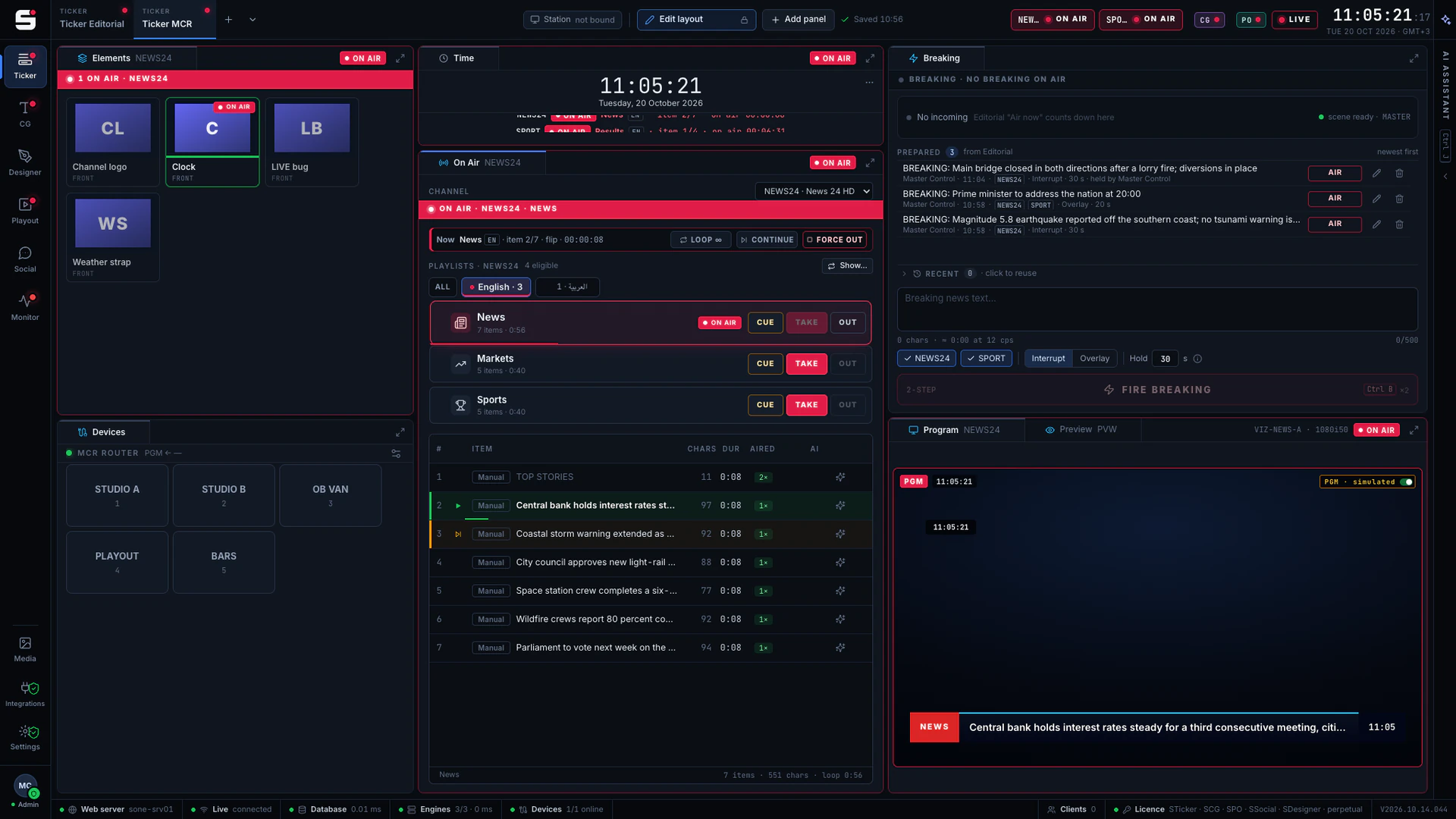
SCG
Character generator
SONE render engine or Viz Engine: layered graphics, versioned templates and the iNEWS newsroom rundown, keyed or burned into SPO.
Explore SCG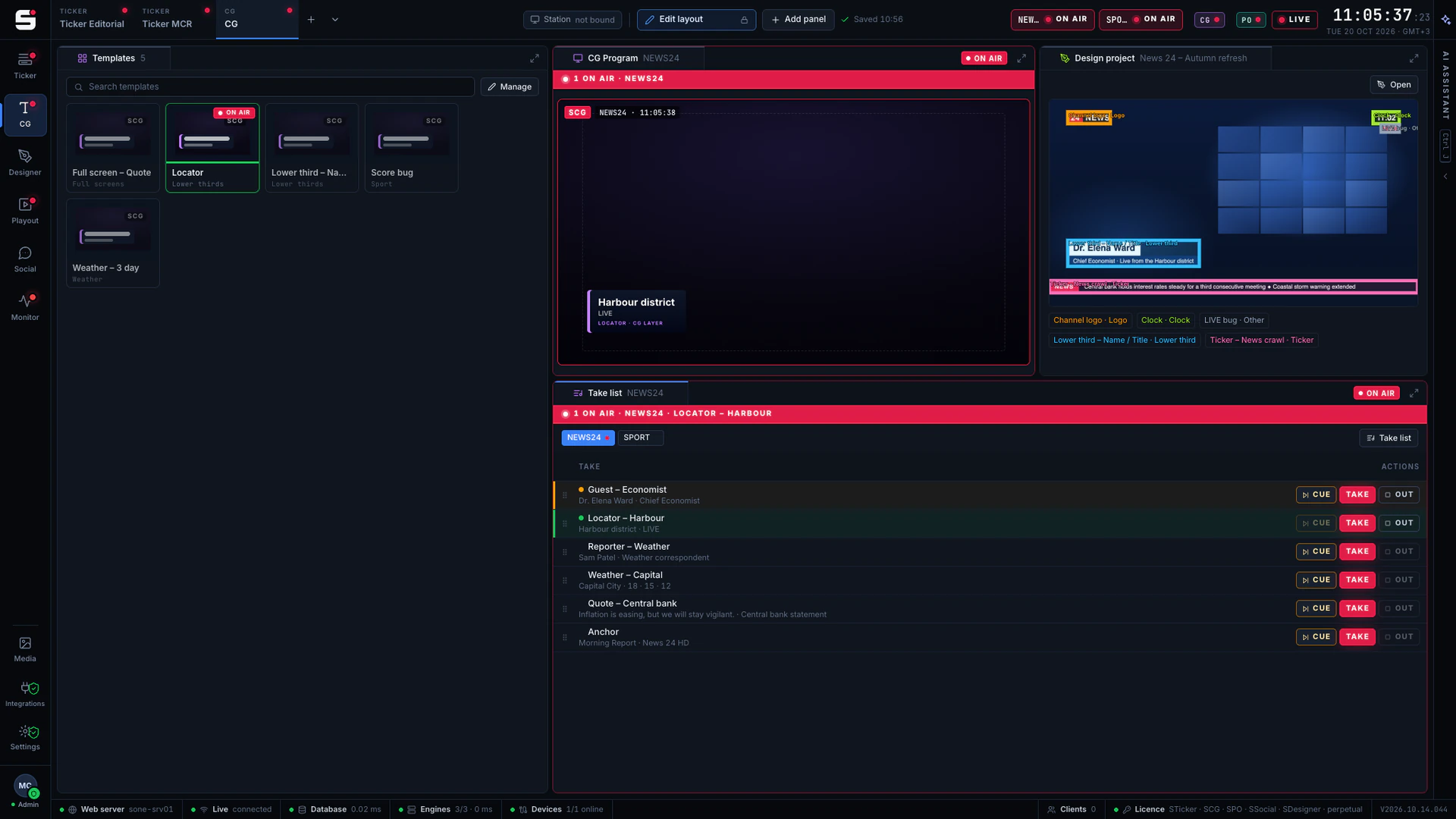
SDesigner
AI-assisted design
Turn a mockup or a screenshot into a layered project and publish it to SCG as a template. People approve; AI never airs.
Explore SDesigner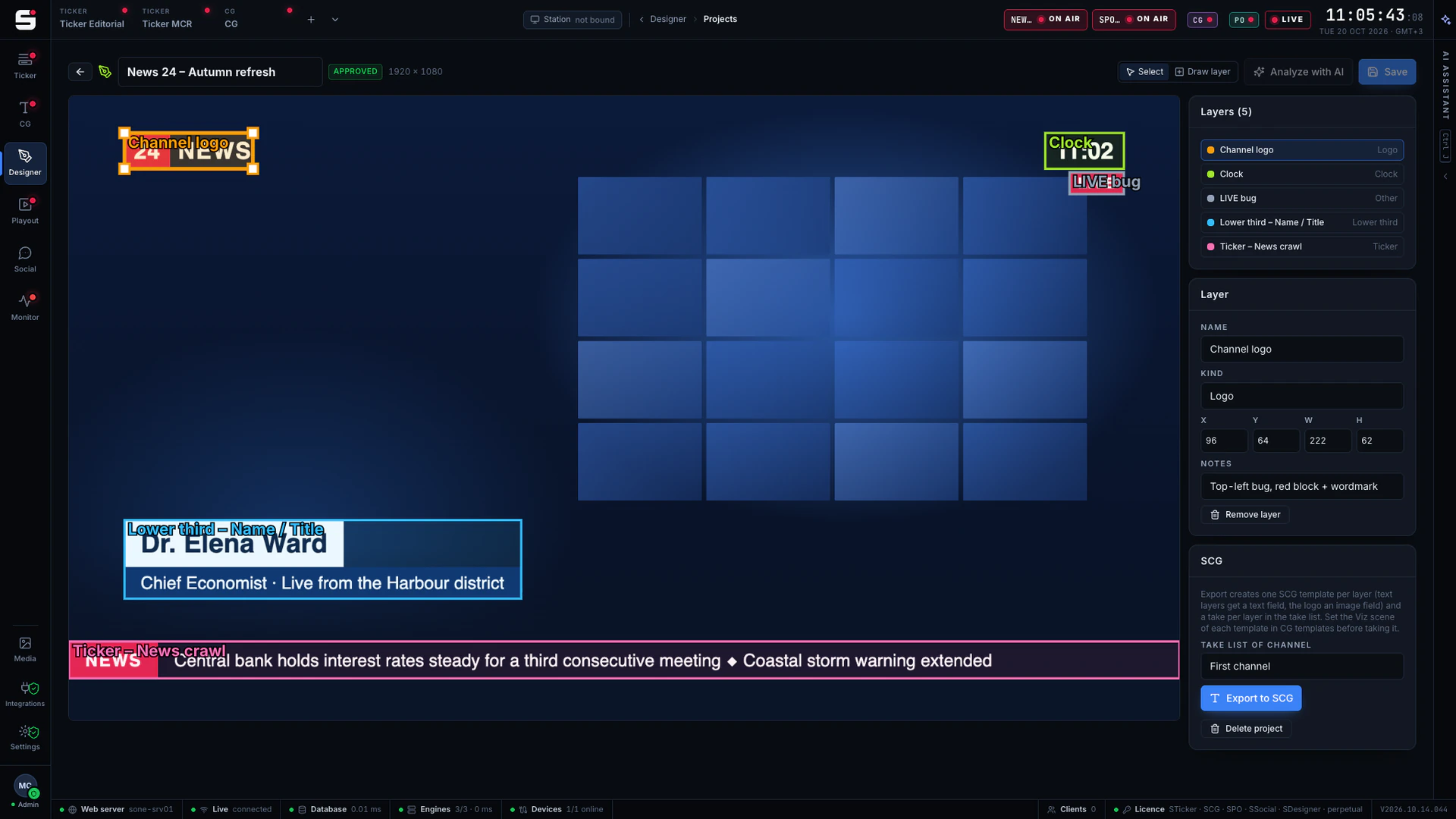
See SMAM on your own engines.
Book a walkthrough with people who have run master control. We will show SONE with your scenes, your playout format and your newsroom feeds.